File Upload with React Frontend and ASP.NET Core Backend
Published: 2020-11-12
Context
Recently, I worked on a project with a React frontend and an ASP.NET Core backend. One of the requirements was to upload a file along with some additional data.
Uploading a file with additional data from a React application to an ASP.NET Core backend is straightforward. However, what initially tripped me up was submitting a collection as part of the same request.
An HTTP request can carry data in different parts, such as form fields, query parameters, headers, and the request body. ASP.NET Core supports binding data from these different sources using model binding attributes.
For example, if you submit a file as a form field and a version as a query string parameter, your action method would look something like this:
public async Task<IActionResult> UploadDocumentAsync(
    [FromForm] IFormFile file,
    [FromQuery] string version)
However, if you want to receive all the data through a single method parameter, you can use a model class decorated with [FromForm]. In this case, all the data, including the file and additional properties, must be submitted as form fields.
The action method would then look like this:
public async Task<IActionResult> UploadDocumentAsync(
    [FromForm] UploadFileRequest uploadFileRequest)
I prefer keeping related request data together in a single model, so I went with the second approach.
ASP.NET Core action method
[HttpPost]
[Route("uploaddocument")]
public async Task<IActionResult> UploadDocumentAsync(
    [FromForm] UploadFileRequest uploadFileRequest)
{
    try
    {
        // Process the request
        return new StatusCodeResult(StatusCodes.Status200OK);
    }
    catch (Exception ex)
    {
        this._logger.LogError(ex, ex.Message);
        return new StatusCodeResult(StatusCodes.Status500InternalServerError);
    }
}
Model class: UploadFileRequest
The request model contains three properties: the document version, the uploaded file, and a collection of authors.
public class UploadFileRequest
{
    public string Version { get; set; }
    public IFormFile File { get; set; }
    public IEnumerable<Author> Authors { get; set; }
}
Model class: Author
public class Author
{
    public string? FirstName { get; set; }
    public string? LastName { get; set; }
}
React code to submit the POST request
To submit form data, you need to create a FormData object and append each property as a key-value pair.
Appending the file and version is straightforward. In the example below, line 4 appends the version, and line 5 appends the selected file.
The interesting part is submitting the Authors collection.
Since FormData works with individual key-value pairs, you need to iterate through the collection and append each property of every author as a separate form field.
Each field must have a name that ASP.NET Core’s model binder can use to reconstruct the collection. To achieve this, use indexed property names such as authors[0].firstName and authors[0].lastName.
The following example demonstrates this approach:
const handleFormSubmit = (e: FormEvent<HTMLFormElement>) => {
    e.preventDefault();

    const formData = new FormData();

    formData.append('version', version);
    formData.append('file', selectedFile as Blob, selectedFile?.name);

    let index = 0;

    authors?.forEach(element => {
        if (element) {
            formData.append(`authors[${index}].firstName`, element.firstName || '');
            formData.append(`authors[${index}].lastName`, element.lastName || '');
            index++;
        }
    });

    axios({
        method: 'POST',
        data: formData,
        url: "api/document/uploaddocument"
    })
        .then(() => {
            alert('Document added successfully');
        })
        .catch((err) => {
            const errorMessage = typeof err.response.data === 'string'
                ? err.response.data
                : err.response.data.title;

            alert(errorMessage);
        });
};
Notice that I haven’t explicitly set the Content-Type header in the Axios request. When sending a FormData object in the browser, let the browser set this header automatically. It will include the required multipart boundary.
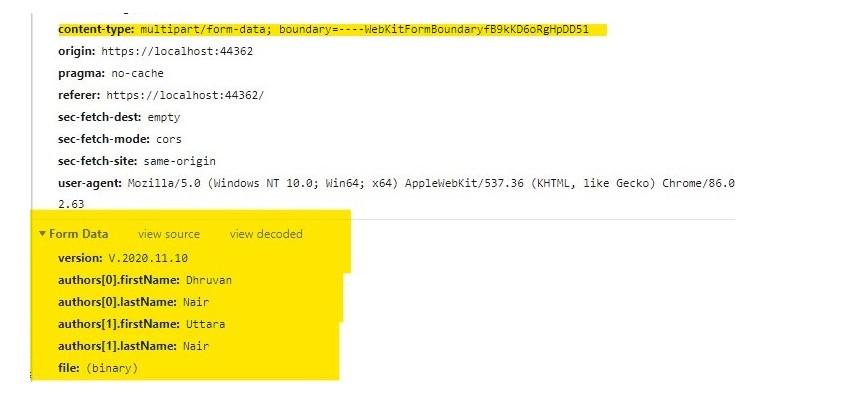
The request in Chrome Developer Tools
In the screenshot below, you can see how the data is submitted as form data. Notice that each author’s properties have indexed field names.
The request model in Visual Studio debugger
The Visual Studio debugger screenshot below shows how ASP.NET Core successfully binds the submitted form fields to the UploadFileRequest model, including the Authors collection.

You can find a working sample of this implementation in the GitHub repository.
Tidbit: ASP.NET Core model binding sources
ASP.NET Core can bind action method parameters and model properties from different parts of an HTTP request using the following attributes:
- FromQuery: Binds values from query string parameters.
- FromRoute: Binds values from route data.
- FromForm: Binds values from posted form fields.
- FromBody: Binds values from the HTTP request body.
- FromHeader: Binds values from HTTP headers.
There is also FromServices, which is different from the attributes above. It does not bind data from the incoming HTTP request. Instead, it resolves a service registered with the dependency injection container and injects it into the action method.
For more information, refer to the ASP.NET Core documentation on model binding.