Reduce Azure Data Factory Compute Spin-Up Time
Published: 2022-04-08
When building pipelines in Azure Data Factory to move or transform data across different sources, you need Linked Services. Linked Services define how Data Factory connects to data stores such as SQL Server and Azure Data Lake Storage (ADLS).
These connections use an Integration Runtime (IR) to provide the underlying compute infrastructure required to perform data movement and transformation activities.
Learn more about Linked Services.
Learn more about Integration Runtime.
When working with data sources hosted in Azure, you can use the Azure-hosted Integration Runtime. It is a convenient option because Azure manages the underlying compute infrastructure for you.
However, depending on the type of Integration Runtime and activity, Azure may provision compute infrastructure when an activity starts and release it after the activity completes.
The catch: Compute spin-up time
Isn’t that great? Yes and no. There is a catch.
Even with the smallest available configuration I was using at the time—4 cores (+4 driver cores) with the General Purpose compute type—it took more than three minutes to provision the compute infrastructure.
Most activities in my pipelines took less than a minute to execute. However, when you include the compute provisioning time, an activity could take more than four minutes to complete.
This overhead can significantly affect pipeline execution time, especially when your pipelines contain multiple data flow activities.
The default behavior might be perfectly acceptable if:
- Your pipelines run only once every few hours.
- Execution time is not particularly important.
- Your pipelines contain very few activities that require data flow compute.
- You prefer to minimize compute costs rather than optimize execution time.
But what if you want to reduce execution time without repeatedly provisioning compute infrastructure?
There is a way to do this. You can configure an Azure-hosted Integration Runtime with a Time to live (TTL) setting. This allows the underlying compute infrastructure to remain available for reuse by subsequent activities and pipeline runs.
As a result, subsequent activities can reuse the existing compute infrastructure instead of waiting for Azure to provision a new one.
Let’s see how to configure this.
Step 1: Create a Linked Service using AutoResolveIntegrationRuntime
First, let’s create a Linked Service to connect to an ADLS Gen2 account using the default Azure-hosted Integration Runtime.
Assuming you are on the home page of your Data Factory instance:
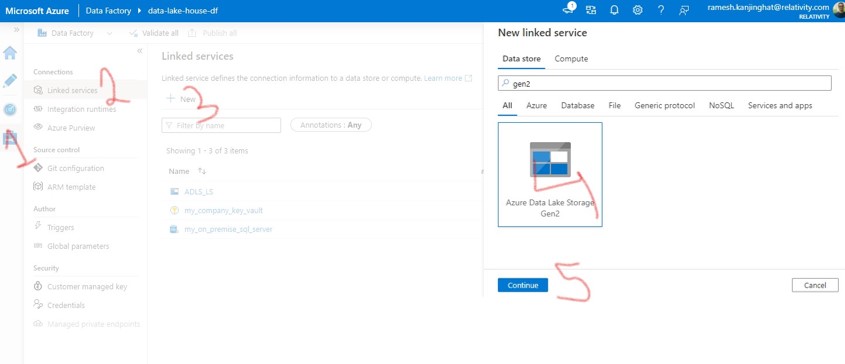
- Navigate to Manage > Linked services.
- Click + New.
- Select ADLS Gen2 as the data source and click Continue.
- Change the Name if required.
- Notice that AutoResolveIntegrationRuntime is selected under Connect via integration runtime.
- Select your preferred Authentication type and provide the required configuration values.
- Optionally, click Test connection to verify the connection.
- Click Create.
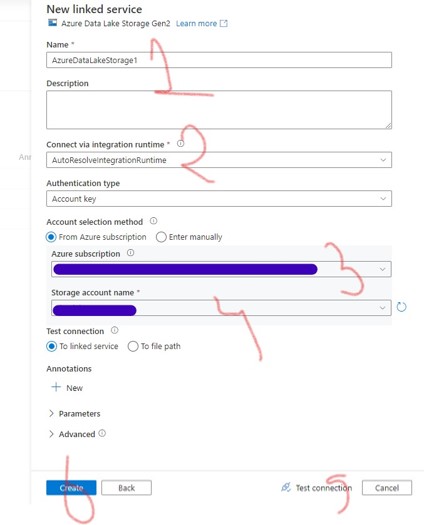
- Click Publish all at the top of the screen to publish the changes.
That’s it! We have created a Linked Service named AzureDataLakeStorage1 that connects to an ADLS Gen2 account.
To observe the provisioning overhead, create a simple pipeline that copies a file from one container to another within the same ADLS account. Run the pipeline twice and compare the execution times.
You should notice that the second run does not provide a significant reduction in execution time because the compute infrastructure is provisioned again.
Refer to the Azure Data Factory documentation on copying data between Azure Data Lake Storage accounts for an example.
Step 2: Create an Azure-hosted Integration Runtime with a TTL
Now let’s create an Azure-hosted Integration Runtime that keeps its compute infrastructure available for reuse.
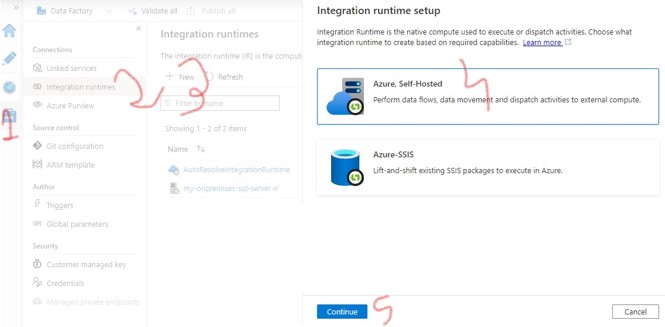
- Navigate to Manage > Integration runtimes.
- Click + New.
- Select Azure, Self-Hosted and click Continue.
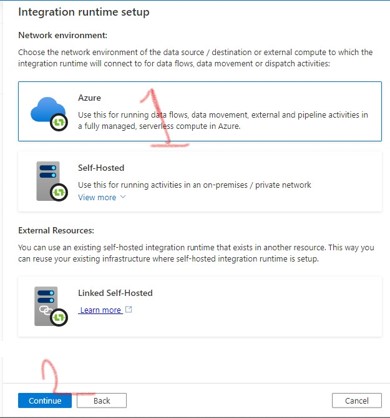
- Select Azure and click Continue.
- On the Settings tab:
- Provide a name for the Integration Runtime.
- Select the region that best suits your requirements.

-
Navigate to the Data flow runtime tab:
- Select the Compute type that meets your workload requirements.
- Select the Core count.
- Configure Time to live.
-
Click Create.

Understanding the Time to live setting
The Time to live setting determines how long the compute infrastructure remains available after an activity completes.
When another activity starts within this period, it can reuse the existing compute infrastructure instead of provisioning a new one.
Keep the following trade-offs in mind:
- Longer TTL: Increases the opportunity for compute reuse but can increase costs because resources remain allocated for longer.
- Shorter TTL: Reduces the time resources remain allocated but may result in additional provisioning overhead.
- Compute type and core count: Larger configurations can improve execution performance for workloads that benefit from additional resources, but they also increase costs.
Choose a TTL based on your pipeline execution frequency and performance requirements.
Step 3: Configure the Linked Service to use the new Integration Runtime
We have created the Integration Runtime. Now let’s configure our existing Linked Service to use it.
- Navigate to Manage > Linked services.
- Select the AzureDataLakeStorage1 Linked Service.
- In the Edit linked service window, select the Integration Runtime we just created (in my example, integrationRuntime1) under Connect via integration runtime.
- Click Save.
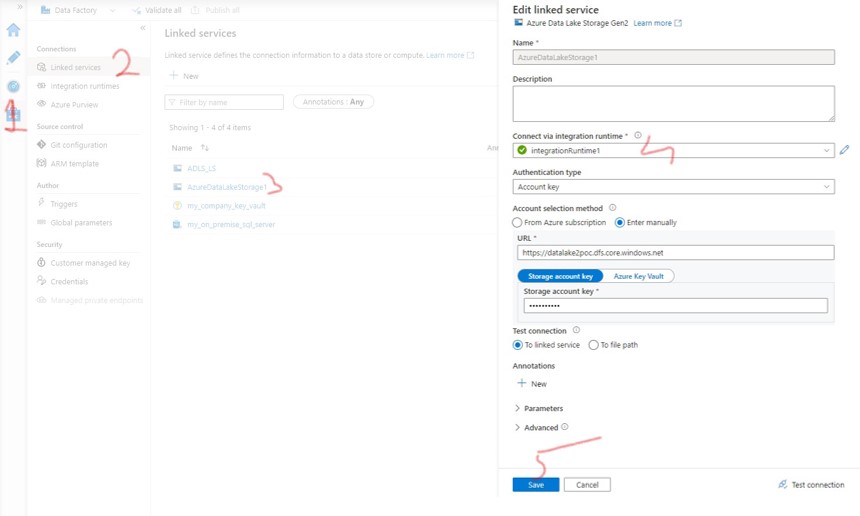
- Click Publish all to publish the changes.
Step 4: Test the improvement
Now run the test pipeline we created earlier twice.
You should notice that the second execution takes significantly less time than the first one.
Here’s why:
- First run: Azure provisions the compute infrastructure before executing the activity.
- Second run: Azure reuses the existing compute infrastructure because it is still within the configured TTL.
This eliminates the need to repeatedly provision compute infrastructure for subsequent activities and pipeline runs that can reuse the same Integration Runtime.
Important: Make sure you execute the second pipeline run within the configured TTL period.
For example, if you configured a TTL of 10 minutes, start the next run before the existing compute infrastructure expires. Otherwise, Azure will release the resources, and the next activity will incur the provisioning overhead again.
Conclusion
Configuring an Azure-hosted Integration Runtime with an appropriate TTL is a simple way to reduce compute provisioning overhead in Azure Data Factory.
This is particularly useful when:
- Your pipelines execute frequently.
- You have multiple data flow activities.
- Individual activities have relatively short execution times compared to compute provisioning time.
- You want to improve pipeline execution time by reusing existing compute infrastructure.
The key is to find the right balance between compute reuse, execution performance, and cost.
You may also like
Export SQL Server query results as an XML file in Data Factory