Export SQL Server Query Results as XML Files in Azure Data Factory
Published: 2022-03-08
Recently, I needed to export data from SQL Server and store it as XML files in Azure Data Lake Storage. The downstream client system only supported XML, so XML was a requirement.
We use Azure Data Factory (ADF) for data integration. However, ADF Copy Activity does not support XML as a sink format, even though XML is available as a dataset format.
Fortunately, there is a workaround. We can use SQL Server’s FOR XML clause to return query results as XML and configure a DelimitedText dataset as the sink. By changing the output file extension to .xml, we can save the query results as XML files.
Here is how to implement this approach.
Step 1: Create a DelimitedText dataset
-
Navigate to Author > Datasets > New dataset.
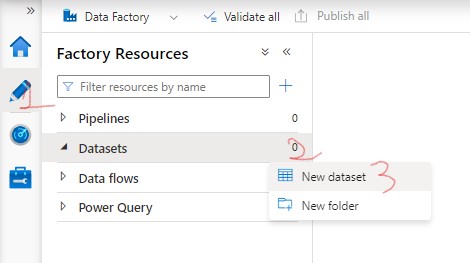
-
Select Azure Data Lake Storage Gen2 from the list of data stores and click Continue.

-
Select DelimitedText as the format and click Continue.

Although XML is available as a dataset format, it cannot be used as a sink format in the Copy Activity for this scenario. We will use DelimitedText instead.
-
Provide a Name and select the appropriate Linked service.
-
Specify the File path. Provide only the folder path, not the file name. Leave the File field (marked as number 5 in the screenshot) empty.

-
Click OK to create the dataset.
-
Select the newly created dataset. On the Connection tab, set the Quote character property to No quote character.

Important: Do not skip this configuration. If a quote character is specified, ADF may enclose the XML content in quotes, causing the entire XML document to be written as a quoted string rather than as the intended XML content.
-
Publish the dataset.
Step 2: Create a pipeline
-
Navigate to Author > Pipelines > New pipeline.

-
Provide a name for the pipeline, if you don’t want to use the default name.
-
Drag a Copy data activity onto the pipeline canvas and open its Source tab.
-
Select your SQL Server dataset as the Source dataset.
-
Select Query under the Use query option and provide a SQL query that returns XML using the
FOR XMLclause.
For example:
SELECT
    CustomerId,
    CustomerName,
    Email
FROM dbo.Customers
FOR XML PATH('Customer'), ROOT('Customers');
The
FOR XMLclause converts the query results into XML. You can customize the XML structure using options such asPATH,AUTO,RAW, andEXPLICIT.Refer to Microsoft’s documentation for more details: Use FOR XML to construct XML.
Note: If you are using a stored procedure instead of a query, make sure the stored procedure returns XML using the
FOR XMLclause. -
Complete the remaining source configuration.
-
Navigate to the Sink tab and select the DelimitedText dataset created in Step 1 (in this example,
GenericFormat). -
Change the File extension property to
.xml.
-
Publish the pipeline.
Step 3: Run the pipeline
Run the pipeline. Once the Copy Activity completes successfully, navigate to your Azure Data Lake Storage location.
You should find an XML file containing the results returned by your SQL Server query.
That’s it! We have successfully exported SQL Server query results as XML files using Azure Data Factory without requiring a dedicated XML sink dataset.
A note on this workaround: This approach relies on SQL Server generating the XML and ADF writing the returned content through a DelimitedText sink. Validate the generated file with your downstream consumer, particularly if you have specific requirements for XML encoding, document structure, or large result sets.
You may also like
How to reduce Azure Data Factory integration runtime spin-up time