Migrate Microsoft Authenticator Accounts to a New Mobile Device
Published: 2022-08-28
Migrating your Microsoft Authenticator accounts from one mobile device to another involves two main steps:
- Back up and restore your accounts on the new device.
- Re-register your accounts to ensure they work correctly on the new device.
Back up and restore account credentials
Microsoft Authenticator supports backing up your accounts and restoring them on a new device. The backup and recovery process varies depending on your device platform and account type.
Follow Microsoft’s official documentation for detailed instructions:
Back up and recover account credentials in Microsoft Authenticator.
Enable accounts on the new device
After restoring your accounts, some of them may require additional verification before you can use them.
For each account that requires re-verification, you need to register the new device as an authentication method. This involves two steps:
- Add the new device as a sign-in method.
- Remove the old device as a sign-in method (optional).
Add the new device as a sign-in method
Follow these steps for each account that requires re-verification:
-
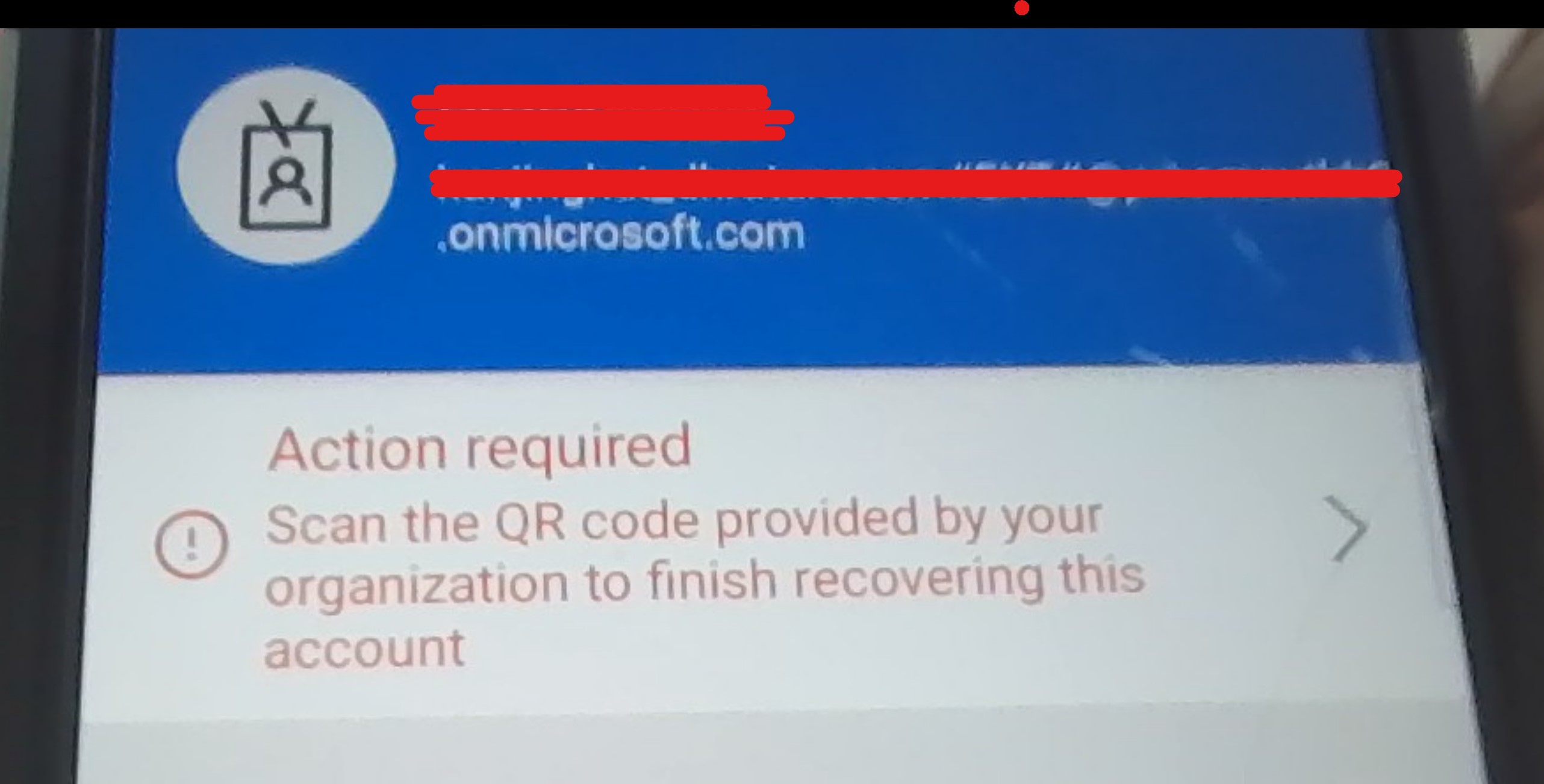
Open Microsoft Authenticator on your new device. You may see an Action Required message below accounts that need to be re-verified.
-
Tap the account you want to re-verify.
-
You will see a screen similar to the one below. Tap the red text to continue.
-
The app will prompt you to scan a QR code to register the device.
-
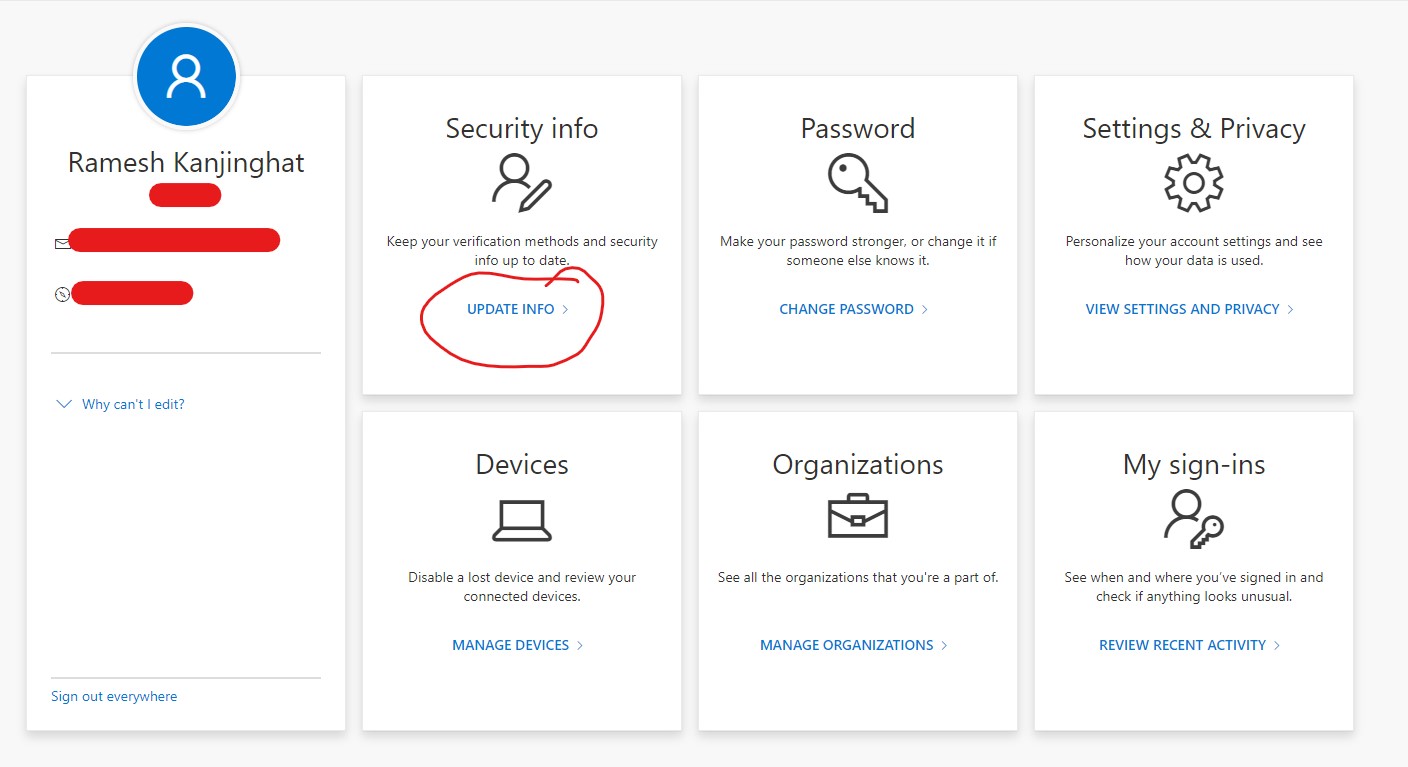
Open a browser and sign in to https://myaccount.microsoft.com/.
-
On the home page, locate the Security Info section and click UPDATE INFO.
-
You may be asked to authenticate using one of your existing multi-factor authentication methods. After successful authentication, you will be taken to the My Sign-ins page.
-
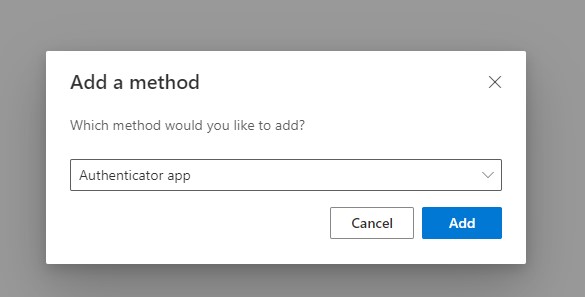
Click + Add sign-in method.
-
Select Authenticator App from the dropdown and click Add.
-
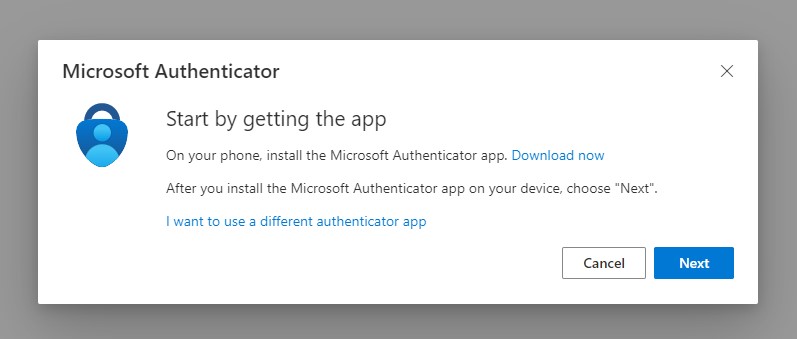
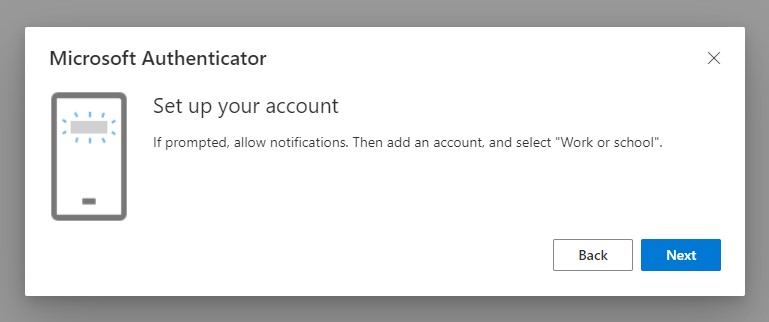
Since Microsoft Authenticator is already installed on your new device, click Next.
-
Click Next again to proceed.
-
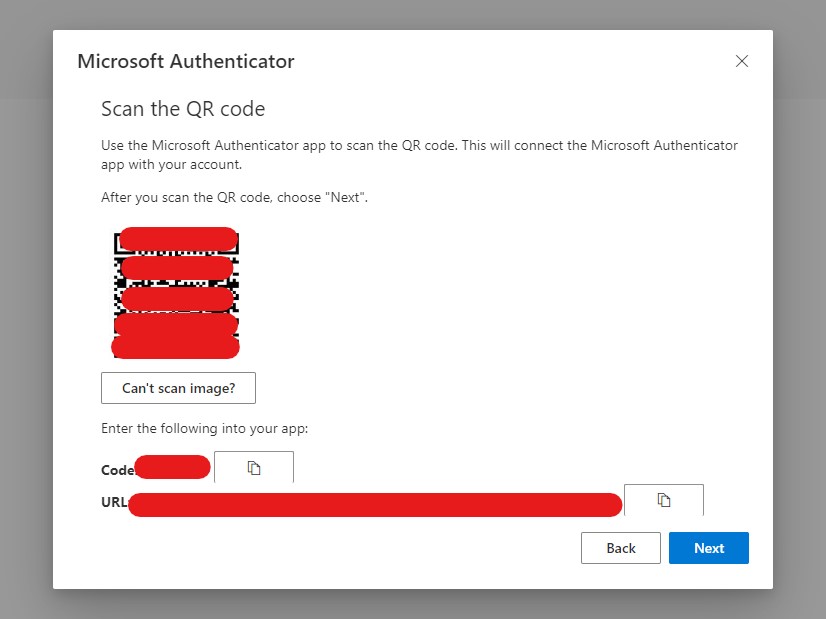
Scan the QR code displayed on the screen using Microsoft Authenticator. Alternatively, you can enter the code and URL manually. Click Next when finished.
-
Microsoft will send a sign-in approval request to your Authenticator app. Approve the request to verify that the new device has been registered successfully.
Repeat these steps for every account that requires re-verification.
Remove the old device as a sign-in method (Optional)
Once you have successfully registered your new device, you can remove the old device from your sign-in methods.
- Return to the My Sign-ins page.
- Locate the old Authenticator device in the list of sign-in methods.
- Click the Delete link next to it and confirm the removal.
Note: If the old Authenticator method is configured as your default sign-in method, you may need to change your default method to another available option before you can remove it.
Removing the old device is optional, but highly recommended if you have lost your old phone or no longer intend to use it. This helps prevent an unused device from remaining registered as an authentication method.
Hope this helps!